


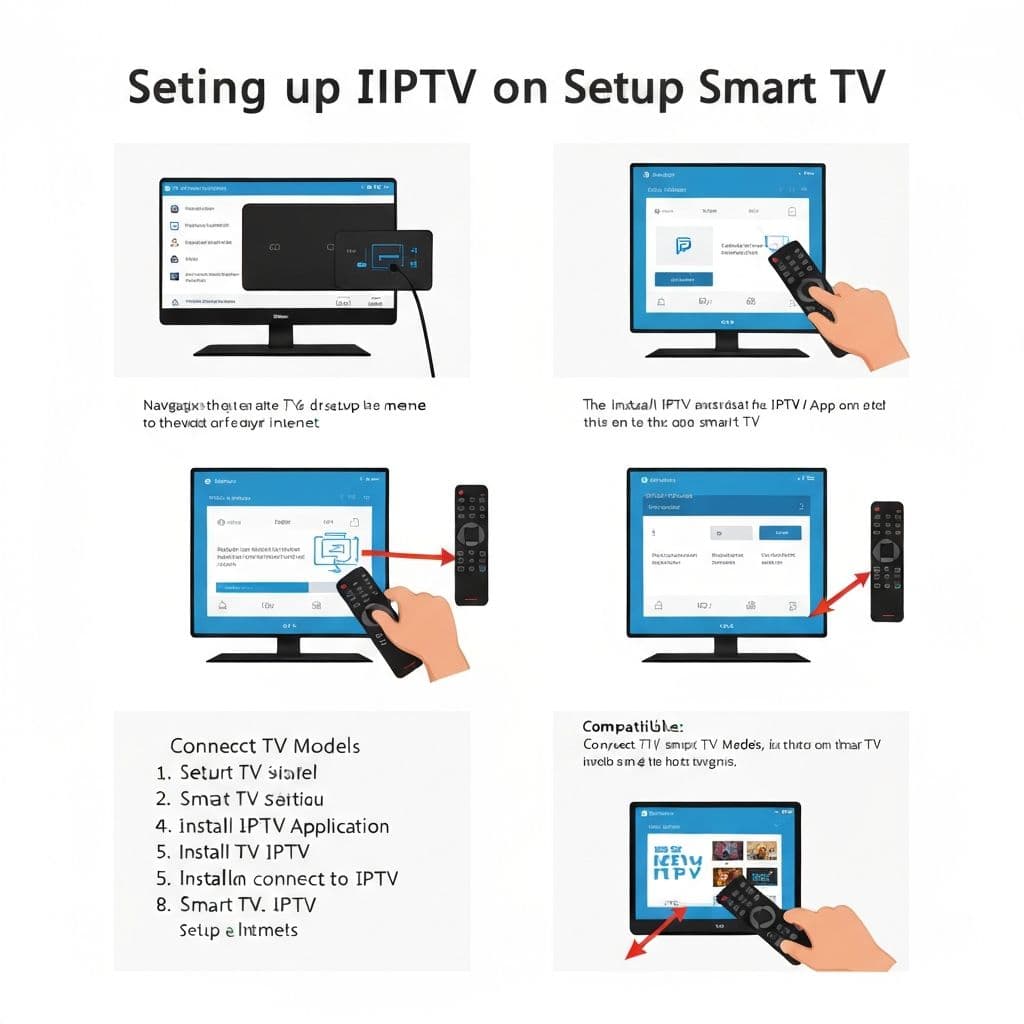
How to Set Up IPTV on Smart TV: Step-by-Step Installation Guide
Want to stream IPTV on your smart TV? This step-by-step guide shows exactly how to set up IPTV on all major smart TV brands. Get streaming in minutes with simple instructions for Samsung, LG, Sony, Android TV, and more.
Smart TVs That Support IPTV
Fully Compatible Smart TVs
Samsung Smart TV (2020+): Built-in app store, direct IPTV app installation, excellent performance, 4K support available.
LG Smart TV (WebOS): LG App Store ready, multiple IPTV apps available, reliable streaming, full 4K support.
Sony Smart TV (Android TV): Google Play Store access, extensive IPTV app selection, strong performance, 4K capability.
TCL Android TV: Google Play Store, all IPTV apps supported, affordable option, 4K models available.
Hisense Android TV: Google Play Store ready, complete IPTV compatibility, budget-friendly, 4K available.
Setting Up IPTV on Samsung Smart TV
Step 1: Access Smart Hub - Press Home button on remote - Navigate to Smart Hub - Select Apps
Step 2: Search for IPTV App - Click Search - Type "IPTV Smarters" - Select the app - Click Install
Step 3: Launch and Login - Click Open - Tap IPTV Smarters Pro - Paste M3U URL or enter credentials - Start streaming
Setting Up IPTV on LG Smart TV
Step 1: Open LG Content Store - Press Home on LG remote - Select LG App Store - Click Search
Step 2: Install IPTV App - Type "Perfect Player" - Select app - Click Install - Wait for installation
Step 3: Configure and Stream - Open installed app - Enter IPTV credentials - Select channels - Start watching
Setting Up IPTV on Sony Smart TV
Step 1: Access Google Play Store - Press Home button - Navigate to Google Play Store - Select Search
Step 2: Download IPTV App - Search "TiviMate Premium" - Click Install - Accept permissions
Step 3: Login and Stream - Open TiviMate Premium - Add M3U playlist or credentials - Select channels - Enjoy streaming
Optimizing Your Smart TV IPTV Experience
Network Configuration
1. Use Wired Connection (Recommended): Connect Ethernet cable, most stable performance, best for 4K streaming. 2. WiFi Setup: Use 5GHz network, place TV close to router, minimize interference.
Video Quality Settings
1. Open IPTV app settings 2. Select video quality option 3. Choose: Auto, HD, Full HD, or 4K 4. Enable hardware acceleration 5. Save settings
Troubleshooting
No Channels Appearing: Verify internet, check credentials, restart app and TV.
Buffering: Check speed (need 5+ Mbps), switch to wired, reduce quality, close other apps.
App Won't Install: Ensure storage space, check compatibility, update TV software first, restart TV.
INFINTETV Setup on Smart TV
Get Started in 3 Steps
Step 1: Subscribe to INFINTETV (choose monthly £15, annual £80, or lifetime £350).
Step 2: Install compatible app (IPTV Smarters Pro or TiviMate Premium - all smart TVs fully supported).
Step 3: Enter INFINTETV credentials - 10,000+ channels load automatically. Start streaming immediately.
Complete Smart TV IPTV Checklist
- ✓ Choose compatible smart TV
- ✓ Connect to stable internet (wired best)
- ✓ Download IPTV app from store
- ✓ Subscribe to IPTV service
- ✓ Configure video quality settings
- ✓ Add credentials or M3U playlist
- ✓ Verify channels load properly
- ✓ Test playback and quality
- ✓ Bookmark favorite channels
- ✓ Enjoy premium streaming
Test INFINTETV with our 24-hour free trial. Experience 10,000+ channels on your TV without installation hassles.